 CarMood
CarPlay widget apps: how to choose one that works in your car
A CarPlay widget app gives you small widgets for CarPlay's widget screen, the leftmost screen, one page to the left of Dashboard. It needs an iPhone on iOS 26 or later and a car that already has CarPlay; no app can add CarPlay to a car. Before you pay, check how the widget looks without its background, whether it reads well at a glance, and what a tap does in your car. Then try a free widget in your own car while parked.
What a CarPlay widget app actually does
Since iOS 26, CarPlay can show widgets from apps on your iPhone. Apple's developer documentation is clear about the format: CarPlay uses an app's small widget, shows it in one or more stacks to the left of the CarPlay Home Screen, in full color and with the widget's background removed (Apple Developer: Adding StandBy and CarPlay support to your widget).
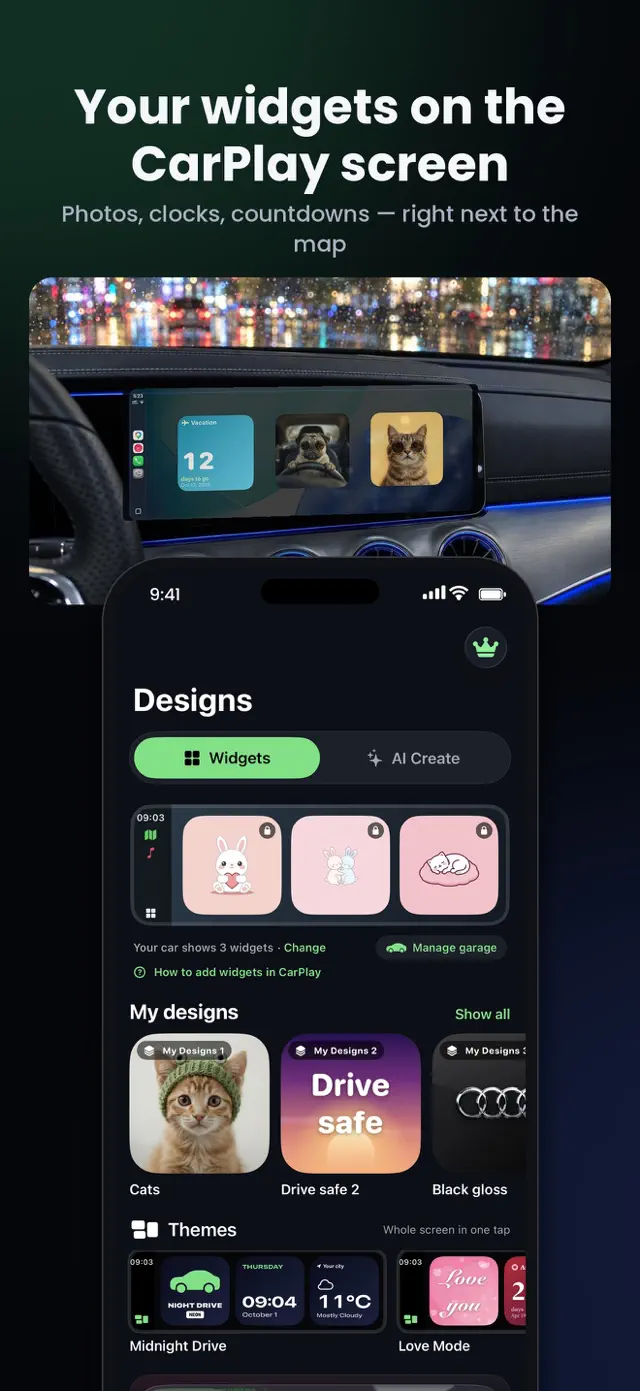
So a widget app doesn't change CarPlay itself. It supplies small cards — a photo, a clock, a countdown, your car's badge — that sit on CarPlay's widget screen next to the ones you already have. The rest of CarPlay, including the wallpaper and the app icons, stays Apple's.
A widget app also can't make an unsupported car show widgets. You need a car or head unit with CarPlay and an iPhone on iOS 26 or later. iOS 27 works the same way.
What to check before you pick one
Most CarPlay widget apps look great in App Store screenshots. What matters is how they look and behave on your car's screen. Check these points first:
- Designed for the car screen, not just the Home Screen. CarPlay removes the widget's background, so a design that relies on a colored background can look empty. Apple asks developers to make the background removable, show only glanceable information and use larger type (Apple Developer).
- Readable at a glance. Big numbers, short text and one clear subject in a photo work best. Dense layouts with small text are hard to read on a car screen, and you shouldn't be studying a widget while driving anyway.
- Fits your screen. How many widget stacks you see depends on your car's screen, and each stack holds up to five widgets. Our guide on how many CarPlay widgets fit your screen explains the layouts.
- A free way to test it. Pick an app that lets you put a widget on your own car's screen before you pay for anything.
- What a tap does. In some cars and apps a tap opens something, in others it does nothing. The next section explains why.
- Where your photos go. If you put personal photos on a widget, read the app's privacy details on the App Store and check whether pictures stay on your iPhone.
Why tapping a widget sometimes does nothing
This is the most common surprise, and it's not a bug. According to Apple's developer documentation, what a tap does depends on the car and the app:
- Touchscreen car, and the app has its own CarPlay app: tapping the widget opens that app in CarPlay, and buttons or toggles on the widget work.
- Touchscreen car, but the app has no CarPlay app: the widget can't open anything, and CarPlay dims it to show that a tap has no effect.
- Car without a touchscreen (knob or touchpad only): widgets and their buttons are inactive.
How to test a widget app in your car
Do all of this while parked, with the car in Park and CarPlay connected. Don't set up widgets on your iPhone while driving.
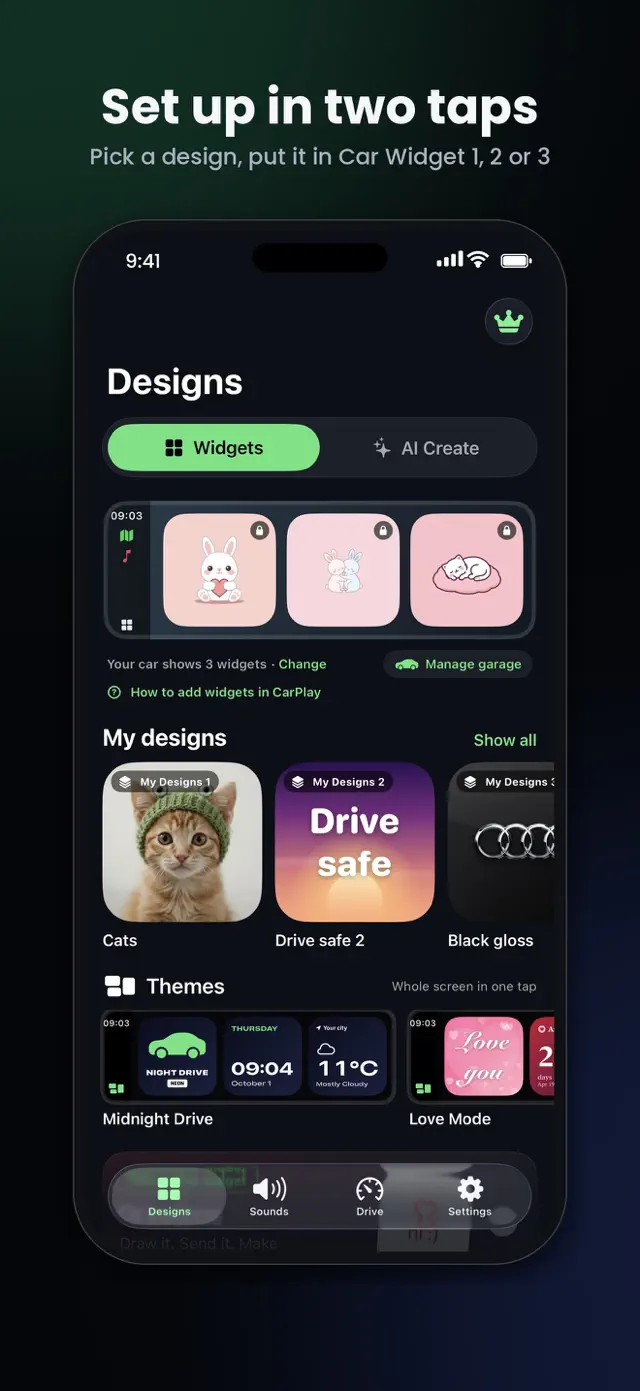
- Install the widget app and set up a design in it.
- On the iPhone, open Settings → General → CarPlay and choose your car.
- Tap Widgets, then Add Widgets, and pick the app's widget. On the same screen you'll find Smart Rotate and Widget Suggestions; turn them off if you want your order to stay fixed.
- Drag the widgets into the order you want. The top widget in a stack is the one you see first.
- Connect CarPlay and look for your widget on CarPlay's widget screen: the leftmost screen, one page to the left of Dashboard. If it's missing or blank, see CarPlay widgets not showing.
Where CarMood fits
CarMood is a widget, theme and sound app for CarPlay on iOS 26 and later. You can put your own photo, a clock, a countdown or your car's badge on a widget, pick a theme, and set a sound that plays when CarPlay connects.
It has free widgets and standard iPhone sounds, so you can check how it looks and sounds in your car before you buy anything. Your designs, widget photos and settings stay on your iPhone. If you use the trip features, trips stay on your iPhone and, with CarMood Pro, in your own iCloud Drive.
If you want to try it, get CarMood on the App Store, add a free widget while parked, and see how it looks on your screen.
What no widget app can do
Some things are simply outside what any widget app can change, so be wary of promises that say otherwise:
- Add CarPlay to a car that doesn't have it, or add widgets to a car that doesn't show them.
- Set your own photo as the CarPlay wallpaper. CarPlay only offers Apple's wallpapers; a photo widget is the workaround (see how to put your own photo on the CarPlay screen).
- Show more stacks than your car's screen allows.
- Guarantee that a wireless adapter or aftermarket head unit shows widgets correctly. See wireless CarPlay adapters and widgets.
Quick answers
Do I need a special app for CarPlay widgets? No. Apps already on your iPhone that offer a small widget can show up in CarPlay's widget list. A widget app gives you designs made for the car screen, such as photos or a big clock.
Why is my widget dimmed in the car? In a touchscreen car, CarPlay dims a widget when its app has no CarPlay app to open. The widget still shows its information.
Will a widget app work in my car? It works where CarPlay already shows widgets: an iPhone on iOS 26 or later and a car or head unit that supports them. Our guide does my car support CarPlay widgets? walks through the check; the quickest test is a free widget in your own car.
What should I put on my widgets? Our CarPlay widget ideas cover photos, pets, countdowns and more.