 CarMood
CarPlay themes: what you can change and how to get the look
CarPlay has no theme setting and no theme store. A CarPlay "theme" is a set of pieces you match yourself: one of Apple's wallpapers, the Appearance setting (Always Dark or automatic), your app order, the widgets on CarPlay's widget screen and, with a Shortcuts automation, a sound when CarPlay connects. You need an iPhone on iOS 26 or later and a car that already has CarPlay. Set everything up while parked.
Is there a theme setting in CarPlay?
No. Apple doesn't offer CarPlay themes or a theme store, and no app can replace CarPlay's own look. What you can change are a few separate settings, some on the car screen and some on your iPhone. Matched together, they give CarPlay a consistent style: dark and minimal, bright and colorful, or built around a photo of your car.
Everything below works with an iPhone on iOS 26 or later; iOS 27 works the same way. None of it adds CarPlay to a car that doesn't have it, and how much you see depends on your car's screen.
The parts of a CarPlay theme you control
These are the pieces that make up the look. Change each one while you're parked.
- Wallpaper. On the car screen, open Settings in CarPlay, select Wallpaper, choose one of Apple's wallpapers and select Set (Apple Support: Use CarPlay with your iPhone). iOS 27 added new wallpapers in Apple's Celosia design, each in a light and a dark version. Details in how to change the CarPlay wallpaper.
- Appearance. In Settings in CarPlay, Appearance has an Always Dark option. Leave it on to keep CarPlay dark, or turn it off so CarPlay can switch between light and dark (Apple iPhone User Guide: Change settings in CarPlay).
- App order. On your iPhone, go to Settings → General → CarPlay, choose your car and tap Customize. Add or remove apps and drag them into the order you want; the new order appears the next time you connect (Apple Support).
- Widgets. Since iOS 26, CarPlay shows widgets on their own screen, the leftmost one, one page to the left of Dashboard. CarPlay shows them in full color with the widget's background removed (Apple Developer), so your wallpaper stays visible behind them. That makes widgets the part of a theme with the most room for your own style.
- Connect sound. There's no CarPlay setting for it, but a Shortcuts automation can play your own sound each time CarPlay connects: set a custom CarPlay startup sound.
How to put a CarPlay theme together
Do all of this while parked, with CarPlay connected. Don't change settings on your iPhone or the car screen while driving.
- Pick the mood first: dark and calm for night drives, bright for daytime, or one built around a photo of your car, partner or dog.
- On the car screen, open Settings in CarPlay → Wallpaper and choose a wallpaper that fits. In iOS 27, the Celosia wallpapers come in light and dark versions.
- In Settings in CarPlay → Appearance, decide whether CarPlay stays dark (Always Dark) or switches automatically.
- On your iPhone, go to Settings → General → CarPlay → your car → Customize and put the apps you use most on the first page.
- Still on your iPhone, tap Widgets, then Add Widgets, and add widgets whose colors match the wallpaper. Turn off Smart Rotate if you want the same widget to stay on top.
- Optional: add a sound that plays when CarPlay connects, so the theme starts the moment you get in.
CarPlay dark mode
If CarPlay switches to a light look during the day and you'd rather keep it dark, open Settings in CarPlay, select Appearance and turn on Always Dark (Apple iPhone User Guide). Do it while parked. For a dark theme, pair it with a dark wallpaper and widgets with light text, which stay readable once CarPlay removes the widget background.
Where CarMood fits
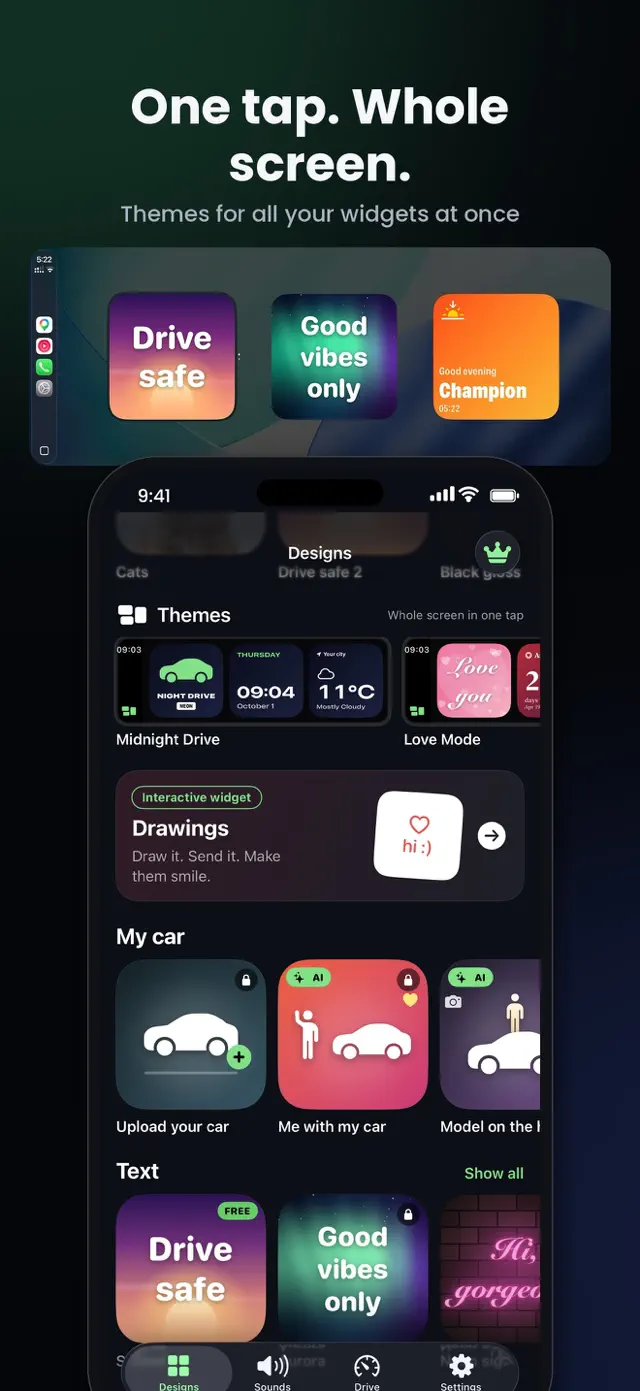
CarMood themes cover the widget part of the look. Pick a theme such as Midnight Drive or Love Mode, and one tap changes all three Car Widgets at once, so you don't have to restyle each widget by hand. You can also make your own designs with your photos, a clock, a countdown or your car's badge, and pick a sound that plays when CarPlay connects.
CarMood has free widgets and standard iPhone sounds, so you can see how it looks and sounds in your car before you buy anything. To try it, get CarMood on the App Store, add a widget while parked and check it on your car's screen. Ideas for what to show are in CarPlay widget ideas.
What a CarPlay theme can't change
Some parts of CarPlay stay Apple's, whatever app you use:
- Your own photo as the wallpaper. CarPlay only offers Apple's wallpapers; a photo widget is the workaround (see how to put your own photo on the CarPlay screen).
- App icon styles. The Customize screen lets you add, remove and reorder apps, but it has no option for icon styles.
- CarPlay in a car that doesn't support it. A theme or widget app can't add CarPlay, or widgets, to a car that doesn't show them.
- More widget stacks than your screen allows. How many stacks you see depends on your car's screen; each stack holds up to five widgets.
Quick answers
Can you get themes for CarPlay? Not as a CarPlay setting. You build the look from Apple's wallpapers, the Appearance setting, your app order and widgets. Widget apps such as CarMood offer themes for the widget part.
How do I change the CarPlay theme? While parked, change the wallpaper and Appearance in Settings in CarPlay on the car screen, then change the widgets on your iPhone in Settings → General → CarPlay → your car → Widgets.
How do I make CarPlay dark all the time? While parked, open Settings in CarPlay, select Appearance and turn on Always Dark.
Where are the widgets? On their own screen, the leftmost one, one page to the left of Dashboard. Step by step: how to add widgets to CarPlay.
Is there more to personalize? See how to customize CarPlay for every setting in one place.